
Complete guide to depositing and withdrawing from your Bitget CFD (MT5) account
Complete guide to depositing and withdrawing from your Bitget CFD (MT5) account
2025-12-12 05:11
0682Share
After you successfully activate your Bitget CFD (MT5) account, the platform will create a dedicated account for MT5 trading, ensuring both security and operational independence.
It is important to note that you cannot deposit funds into your MT5 account or withdraw funds from it directly. However, you can transfer funds between your funding account or spot account and your CFD (MT5) account through the dedicated CFD asset page on Bitget.
Bitget CFD (MT5) supports only USDT as margin. This means you can transfer only USDT into or out of your CFD (MT5) account.
How to deposit into your Bitget CFD MT5 account
Step 1: Ensure you have sufficient balance in your funding or spot account
To transfer funds from your classic account or unified trading account to MT5, make sure you have available USDT in either your spot account or funding account.
Step 2: Go to the CFD (MT5) asset page
After depositing USDT into your funding account, log in to Bitget and navigate to the CFD (MT5) asset page. On this page, you'll see a Transfer In button—click it to initiate the deposit process.
Step 3: Enter the deposit amount and confirm
In the pop-up transfer window, enter the amount of USDT you wish to transfer to your CFD (MT5) account. To transfer all available USDT from your funding account, click the All button. After reviewing the amount, click Confirm to complete the transfer.
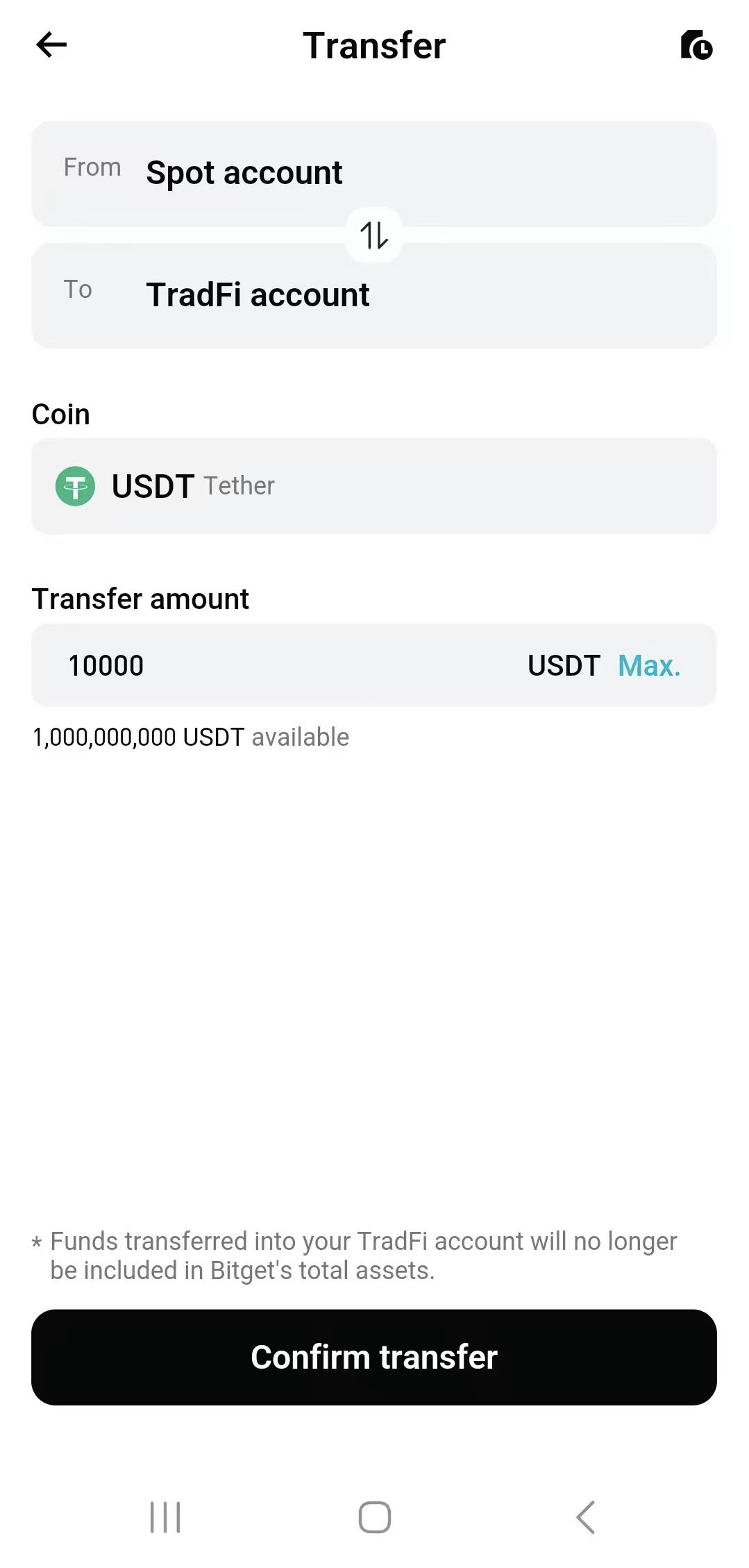
Once these steps are completed, your funds will be transferred to your CFD (MT5) account. You can view the details in your transaction history or check your updated balance anytime on the CFD (MT5) asset page.
How to withdraw from your Bitget CFD (MT5) account
Step 1: Go to the MT5 asset page
When you need to withdraw funds from your CFD (MT5) account, log in to Bitget and navigate to the MT5 asset page. On this page, you'll see a Transfer Out button—click it to initiate the withdrawal process.
Step 2: Enter the withdrawal amount and confirm
In the pop-up window, enter the amount of USDT you want to transfer from your MT5 account. To transfer out all available USDT from your MT5 account to the funding account, click the All button. After reviewing the amount, click Confirm to complete the transfer.
Step 3: Review the withdrawal result
Once the transfer is complete, your funds will be returned to your funding account. You can view the details in your transaction history or check your latest balance on the funding account page.
This step-by-step guide should give you a clear understanding of how to deposit and withdraw funds from your Bitget CFD (MT5) account. If you encounter any issues, please contact our customer service team—we're here to help.
*This announcement is time-sensitive. Please note the date of publication. The platform assumes no responsibility for any direct or indirect losses arising from changing circumstances or outdated content.
Related articles
Bitget CFD (MT5) beginner's guide: Embark on a new financial trading journeyStep-by-step guide to exporting trading reports on Bitget MT5MetaTrader 5 (MT5) trading services explainedHow to sign up for a Bitget MT5 account?Floating spreads and bid–ask price dynamics in Bitget CFD (MT5) tradingAll supported order types in Bitget CFD (MT5)How to log in to your Bitget CFD (MT5) account and reset your passwordOverview of supported trading pairs on Bitget CFDBitget to suspend TradFi for the 2026 Epiphany, Martin Luther King Day and Australia Day
Was this helpful?