
How to Check Support Ticket Status?
How to Check Support Ticket Status?
[Estimated Reading Time: 5 mins]
This article explains how to check the status and details of your support tickets through the Support Ticket Page. It also covers how to view updates, track progress, and reply to ongoing requests.
How to access the support ticket page
You can access your support ticket page through the Bitget website or the Bitget App.
On the Website
1. Log in to your Bitget account.
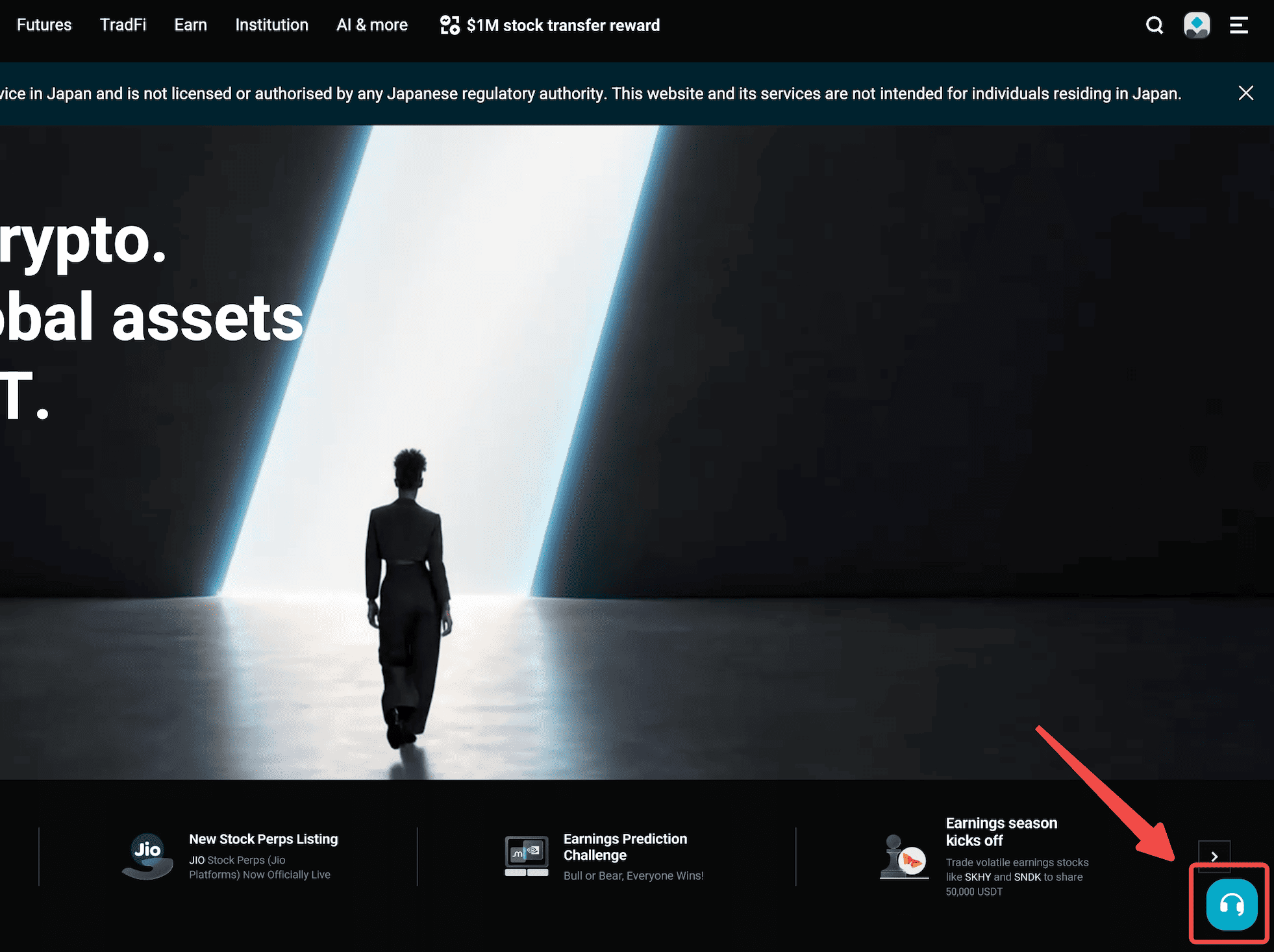
2. Click the Customer Service chat icon located at the bottom right corner of the page.
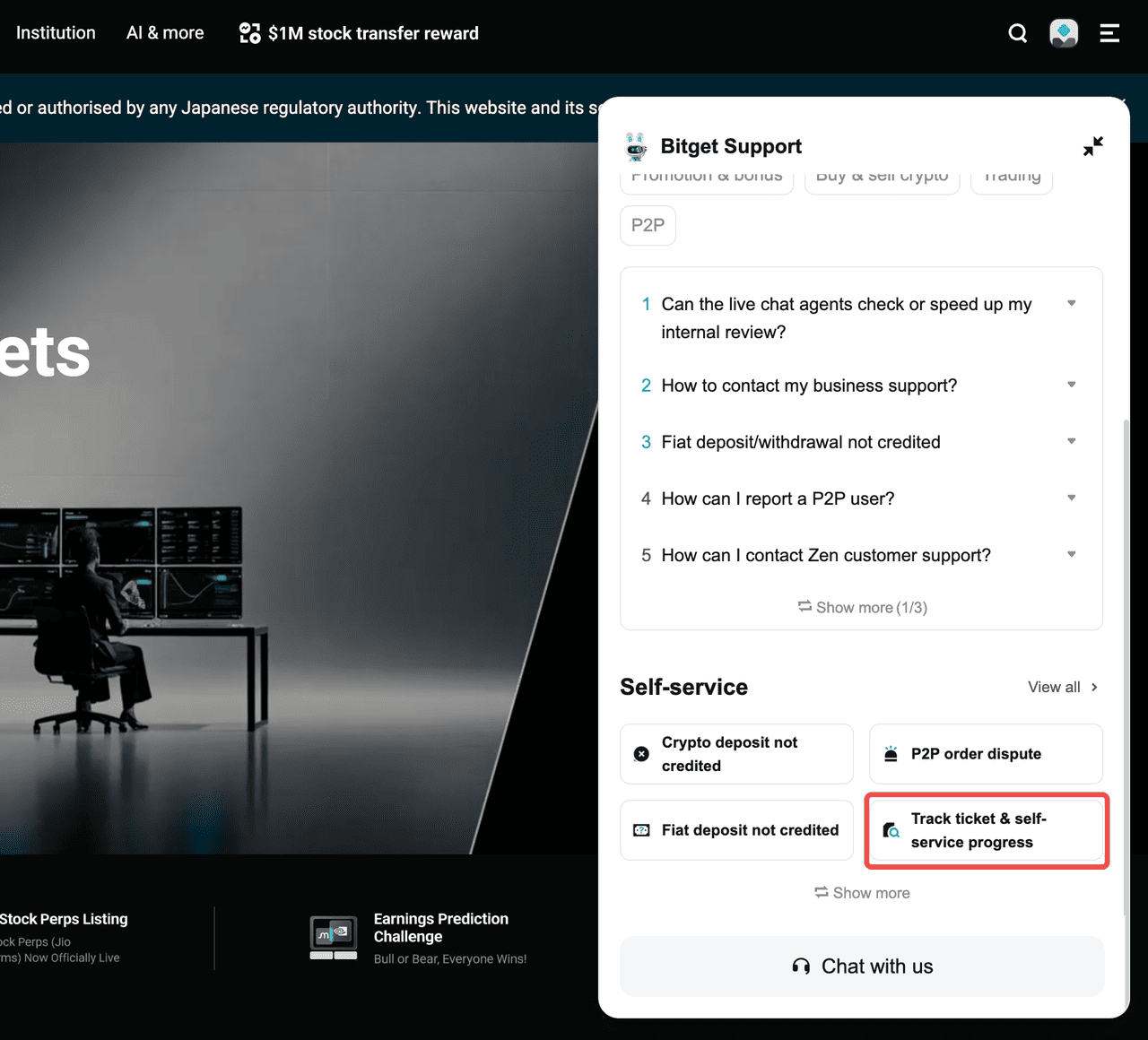
3. Scroll down in the chat window to find the Self-Service section.
4. Click the Track Ticket & Self-Service Progress button to access the support ticket page.
On the Bitget App
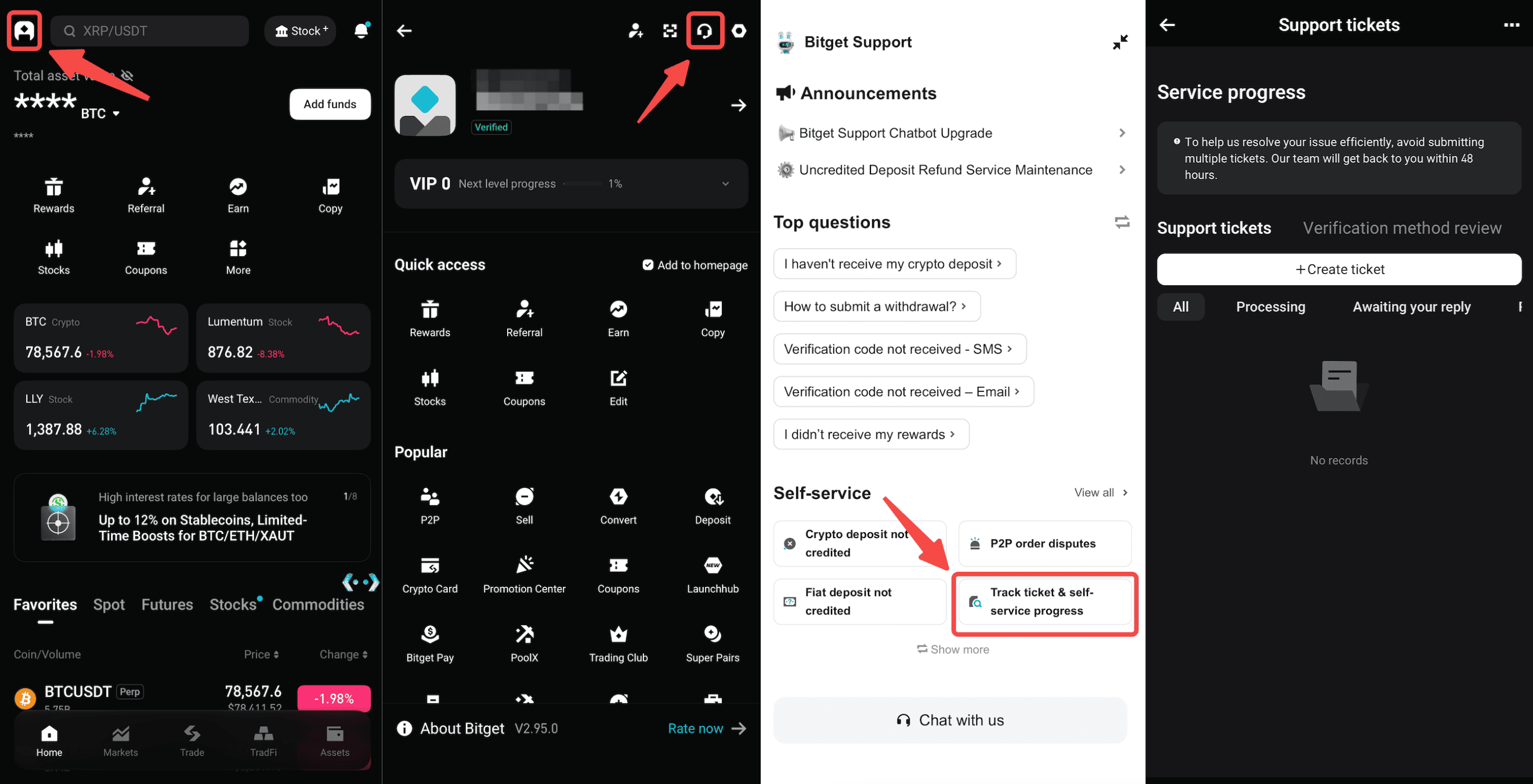
1. Open the Bitget App and log in.
2. Tap your User Profile icon at the top left corner.
3. Tap Customer Service chat icon.
4. Scroll down to find the Self-Service section.
5. Tap the Track Ticket & Self-Service button to access the support ticket page.
Viewing your ticket details
You can access your support tickets either by logging in to your Bitget account or by continuing as a guest with the email address used to submit the ticket.
Option 1: Log in to your Bitget account
If you submitted your ticket through your Bitget account:
1. Ensure you are logged in to your Bitget account.
2. Navigate to the Support Ticket Page.
3. View your ticket list.
Once logged in, you will be able to:
-
View all tickets associated with your account
-
Check the latest updates and agent responses
-
Reply to tickets by adding new messages or attachments
Note: If the email address was linked to your Bitget account after the ticket was submitted, the ticket will not appear in your account. Please use Guest Access to access the ticket instead.
Option 2: Continue as guest
You can access a ticket through "Continue as Guest" using the email address that was used to submit the ticket:
1. Go to the Support Ticket Page.
2. Select "Continue as Guest".
3. Enter the email address you used when submitting the ticket.
4. Enter the verification code sent to your email inbox.
Once verified, you will be able to:
-
View tickets submitted with that email address
-
Check the latest updates and agent responses
-
Reply to tickets by adding new messages or attachments
Note: Ensure the email address you enter matches the one used when submitting the ticket. Otherwise, you will not be able to access your ticket.
Email notifications: System notification channel only
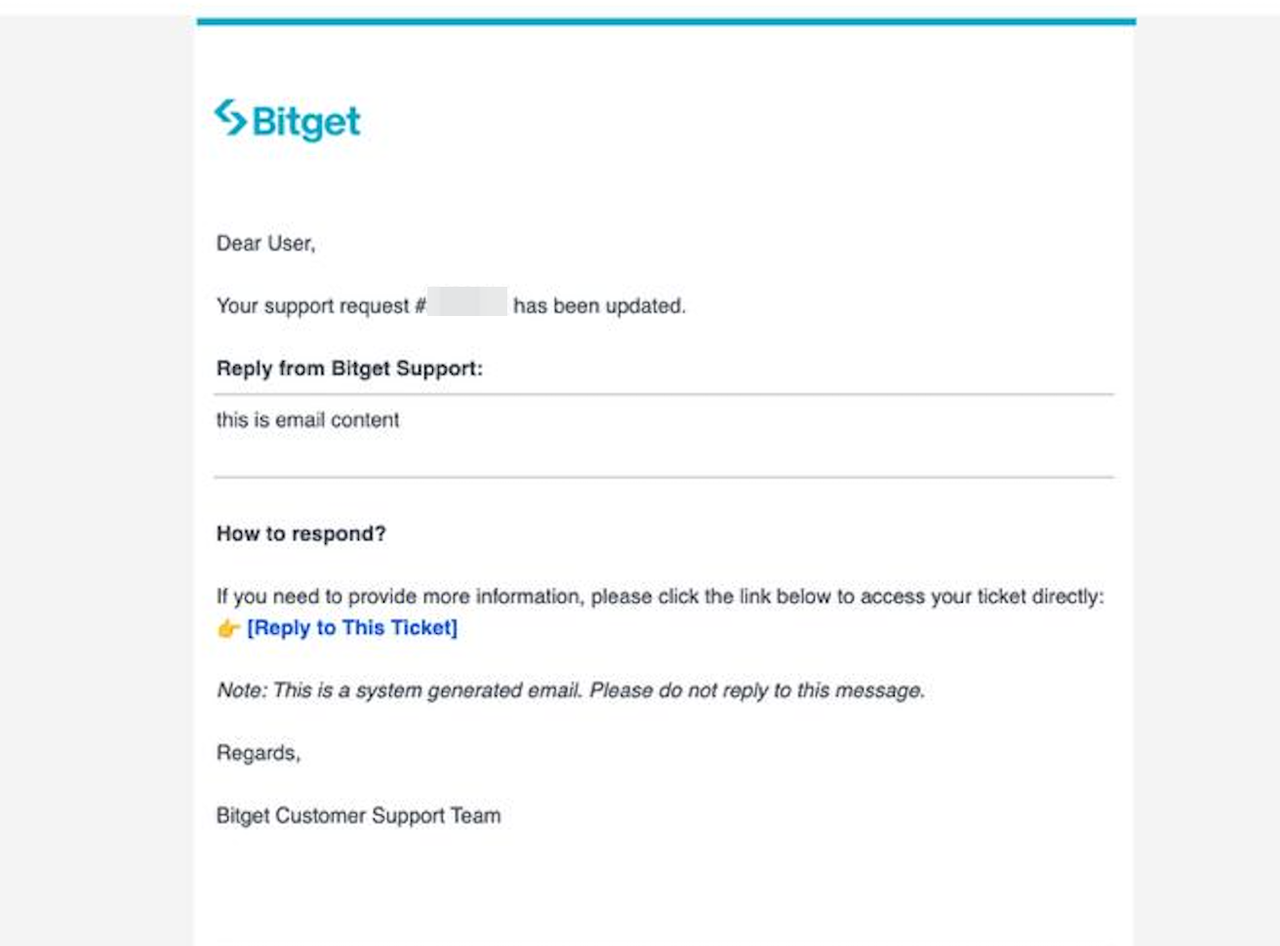
Email notifications from Bitget Support serve as a system notification channel for ticket status updates. Please note the following:
-
Emails will only contain ticket status updates and agent response previews
-
You cannot reply directly to email notifications and email replies will not be received by the support system
-
All additional information, questions, and attachments must be submitted through the ticket detail page in the Support Ticket Page.
To respond to a ticket or provide additional information, you must access the ticket through the Support Ticket Page using either login method described above.
FAQs
1. Why can't I see my ticket after logging in?
Your ticket will only appear if the email address used to submit the request is linked to your Bitget account. If the email is not linked, please use the "Continue as Guest" option and verify with the original submission email.
2. Can I submit a new ticket without logging in?
Yes, but you must complete email verification. Select "Continue as Guest," enter your email address, and verify with the code sent to your inbox before submitting a new ticket.
3. How do I know if the support team has replied?
You can check the ticket details in the Support Ticket Page for the latest responses. You will also receive an email notification when there is a ticket update or a new agent response.
4. Can I reply to support emails directly?
No. Email notifications are for informational purposes only. To reply to a ticket or provide additional information, you must access the ticket detail page through the Support Ticket Page.
*This announcement is time-sensitive. Please note the date of publication. The platform assumes no responsibility for any direct or indirect losses arising from changing circumstances or outdated content.